Windows Only: X Server
If you are using Ubuntu on Windows (see Windows Only: Ubuntu on Windows), you need to install an X Server in order to see images displayed by bash. In this section, we will install the Xming X Server. Skip this section if you are using Mac or Linux.
Download Xming using the provided link.

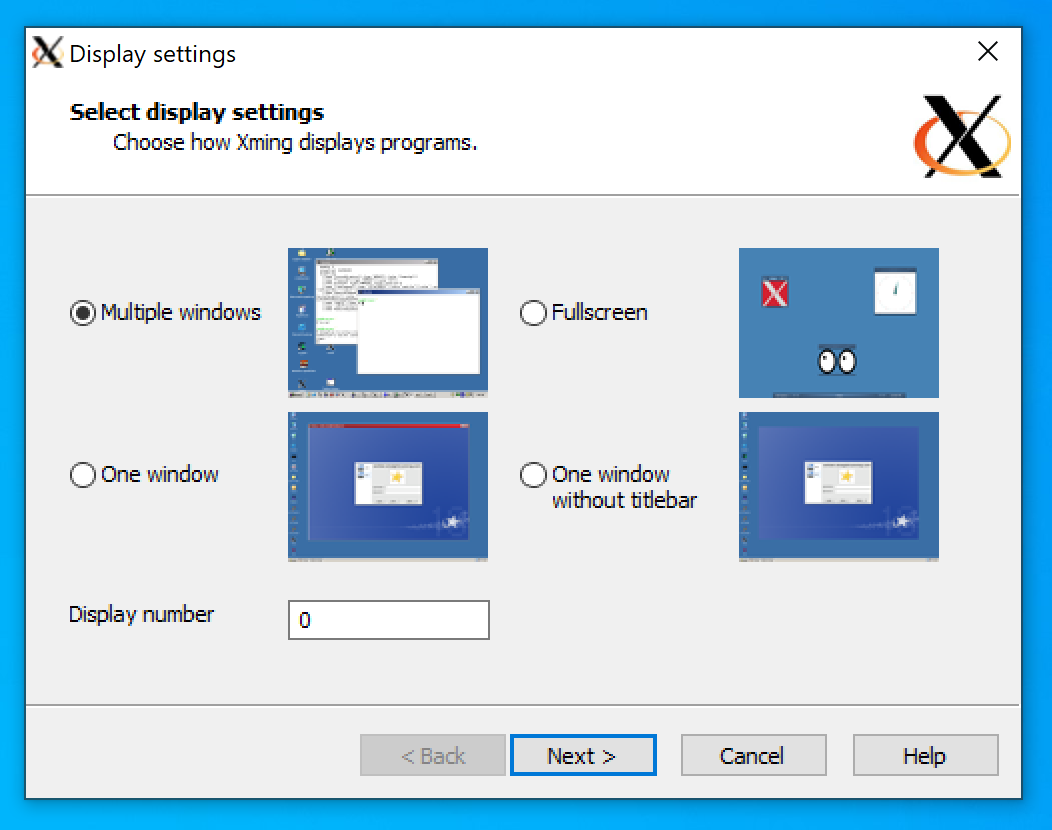
Launch the Xming installer once it finishes downloading. This will open a new window as shown below. Use the default settings until you reach the “Select Components” page.

On the “Select Components” page, select “Don’t install an SSH client”. Make sure that the box for “XLaunch wizard - frontend for Xming” is checked.
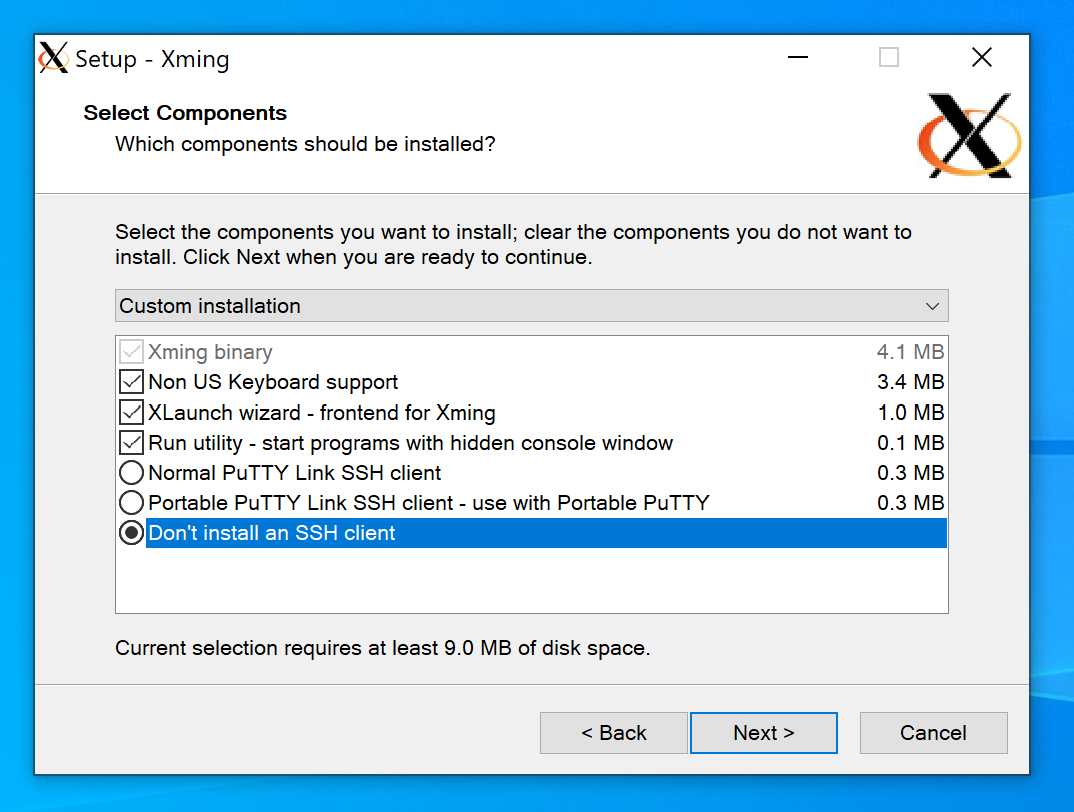
Use the default settings for the remaining pages and begin installation.
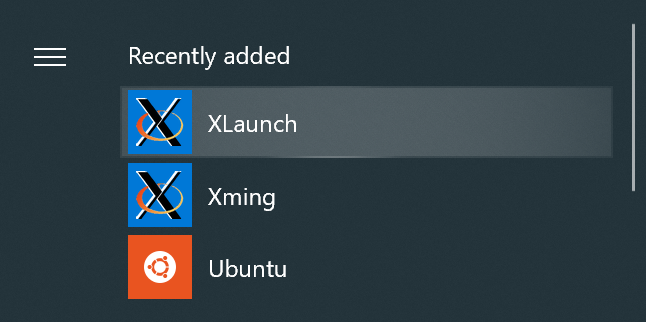
When the installation finishes, you will see that two programs were installed - XLaunch and Xming. We will use XLaunch to launch the X Server frequently, so you may wish to pin it to your start menu.
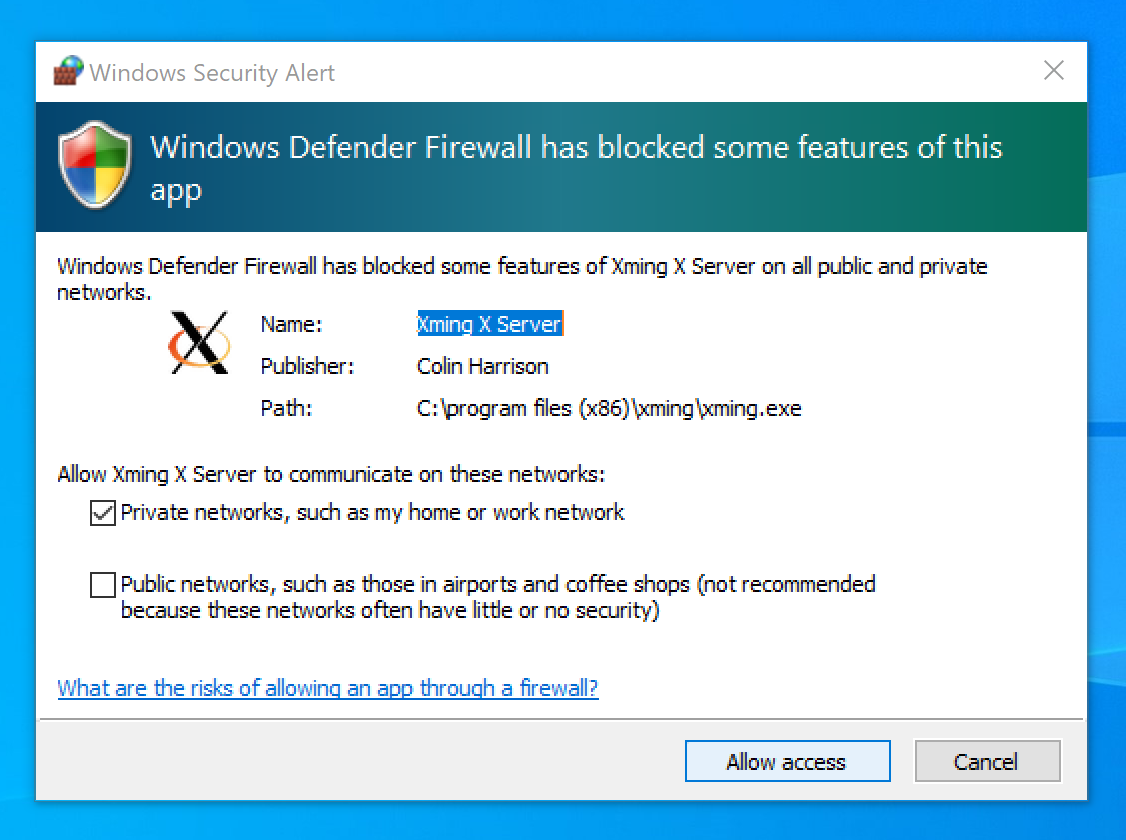
Run XLaunch (not Xming). The first time you run it, it may be stopped by your firewall. You will need to allow access.
Once XLaunch successfully opens, you should see the following window. You can close it for now (we will discuss how to use it later).